RF.Guru
VFO-Knob — Touchscreen & Dial for your radio
VFO-Knob — Touchscreen & Dial for your radio
Couldn't load pickup availability
Tune your radio with
a real knob.
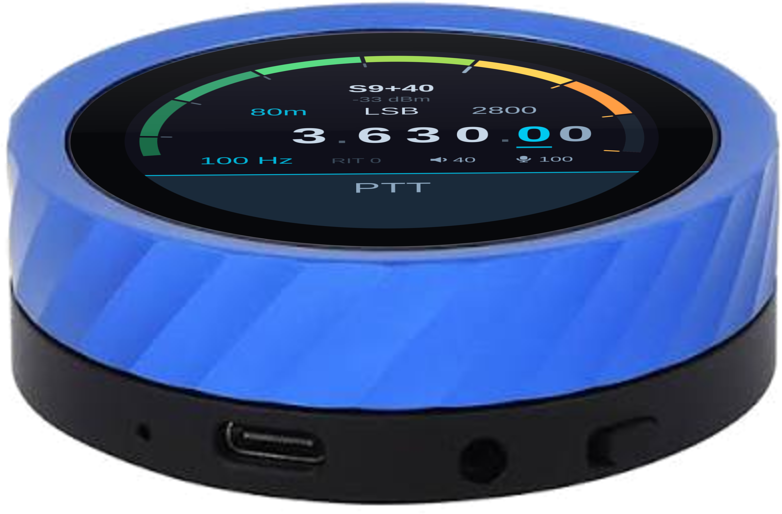
A compact radio controller with a round touch screen, a physically rotating tuning ring, WiFi and a rechargeable battery. Tune, listen, talk and change settings from your desk or your favourite chair.
The blue outer ring turns. Tap a frequency digit to choose your tuning step, then rotate the metal ring to tune. The screen handles touch controls; the side ring is your physical dial.
Connect headphones to the 3.5 mm output and talk through the built-in microphone, or pair a compatible Bluetooth headset for listening and transmit audio.

WiFi and a battery, as standard.
Every unit is the blue model with a built-in rechargeable battery. There are no colour, power or firmware options to select at checkout. The knob starts with its firmware picker: choose your radio or application on the knob, and change it later whenever you like.

Keep it beside your keyboard.
With AetherSDR, one USB-C data cable to the host computer carries power, radio control and audio while charging the battery. Tune at the computer and the knob follows; turn the ring and AetherSDR follows.
Take your controls with you.
Use the battery and WiFi to operate elsewhere in your home. With supported Icom radios or direct FlexRadio firmware, control and audio connect to the radio without a computer in between. USB-C can provide power for longer desk sessions.
A smartphone is enough to configure the knob's WiFi. Firmware selection happens on the dial. AetherSDR operation still requires a computer running AetherSDR.
The microSD card holds firmware for quick switching, including offline installation of the versions already stored on it.
Your radio. Your firmware.
Each firmware has its own interface and connection method. The picker retrieves the current release list when online; stored firmware remains available from the microSD card without internet. Each firmware keeps its own radio, login and control settings on the card, so switching back restores that configuration.
Your FlexRadio workstation
Connect to AetherSDR on Windows, macOS or Linux for FlexRadio 6000, 8000 and Aurora transceivers. Control and audio use TCI v2.0 over USB networking or WiFi.
The AetherSDR host computer stays part of this setup. AetherSDR guide →
MultiFlex, at home or through SmartLink
Connect directly to a FLEX-6000 or FLEX-8000 with MultiFlex enabled. Operate as your own station with receive and transmit audio, or use the knob as the dial and PTT for an existing SmartSDR, AetherSDR or Maestro station on your LAN.
SmartLink adds remote operation through your FlexRadio account. In that mode, the knob is its own station. FlexRadio guide →
Direct Icom control and audio
Supports IC-705, IC-7610, IC-9700 and IC-R8600. The IC-R8600 is receive only. The knob joins your WiFi; the radio connects to the same network using its own WiFi or Ethernet connection.
Beta: IC-7300MK2, IC-7760 and IC-905. These integrations are available as beta support and have not yet been tried on the actual radios. Icom guide →
A real dial for a web receiver
Tune an UberSDR receiver on your network or through its internet tunnel. Browse DX spots and detected voices, adjust the available noise filters and view the receiver's SSTV gallery where provided.
No local transceiver or computer is needed. Access follows the receiver owner's capacity and session limits. UberSDR guide →
KiwiSDR and Web-888 on the dial
Tune a KiwiSDR or Web-888 directly, choose among up to four configured receivers and use their available antennas, modes and filters. A second receiver can play in the other ear through wired stereo headphones for a controlled A/B listen.
Access and time limits remain with the receiver owner. Kiwi888 guide →
Your OpenWebRX receiver, with a real dial
Connect to OpenWebRX or OpenWebRX+, tune within the receiver's available band and select another band from its list. Configure up to four receiver addresses; the knob moves to another configured receiver if one cannot be reached.
Explore WebSDR receivers
Use the knob with compatible WebSDR sites listed on websdr.org, including the University of Twente receiver. Store up to four addresses, tune across the receiver's bands and respect its own session and idle limits.
A talkgroup knob for SvxLink
Join an SvxLink reflector, turn the ring to choose a talkgroup and use the microphone and audio output—or a Bluetooth headset—to talk and listen. The screen shows who is speaking.
Configure your reflector and account details; access and certificate approval follow the reflector's rules. SvxLink guide →
Your favourites on the ring
With a SIP account, turn to a favourite and tap CALL, use the touch keypad or answer an incoming call. Listen through the jack, a compatible Bluetooth headset or speaker; use the built-in or headset microphone.
Optional read-only Google Contacts sync needs separate account setup. Telephone guide →
In development: OpenHPSDR for Hermes Lite 2 and ANAN, Xiegu X6100/X6200, and a Raspberry Pi bridge for older radios. Kiwi888, OpenWebRX, WebSDR and Telephone are in the published v1.20.0 firmware picker.
Your everyday controls, within reach.
Fine tuning and fast travel
Tap a frequency digit for the step and turn the outer ring. Tuning acceleration lets you move across a band quickly and settle on a signal precisely.
Meters and quiet haptics
Read signal strength and, where the connected transceiver provides them, SWR, forward power and microphone level. The vibration motor stays quiet while you transmit.
Four radio or receiver profiles
Supported firmware can keep up to four configured endpoints. Swipe up, turn to a profile and tap. Radio firmware restarts into that connection; Kiwi888 switches between its receivers live.
Controls for your radio
Use the IC-7610's MAIN/SUB and antenna selection, IC-705/IC-9700 memories, or IC-R8600 antenna and squelch controls. FlexRadio adds TUNE, ATU and tuner-memory controls. Available functions follow the radio.
On IC-705 and IC-9700, swipe down and select V/M for memories. PTT keys when your finger lifts from a tap, so starting a swipe on the bar does not key the transmitter; while transmitting, a touch stops it.
Listen, talk and control PTT from your headset.
Pair a compatible Classic Bluetooth hands-free headset on the knob's configuration page. Its microphone becomes your transmit microphone and the knob's built-in microphone switches off. Your paired headset reconnects when available.
The call button becomes PTT
For transmitting firmware, press to key and press again to unkey. With a headset that reports microphone mute, the knob refuses to start a transmission while muted. A tap on the knob stops an active transmission.
If the headset disconnects during transmission, the powered and connected knob sends an unkey command.
Or use a compatible boom arm
On a headset that reports boom-up mute, enable boom-arm PTT: lower the boom to talk and raise it to stop. The knob first requires the boom to have been raised, avoiding transmission just because the headset connected with it down.
Tested with Jabra Evolve2 65 Mono and Stereo. Other hands-free headsets depend on their profile and button/mute behaviour.
Bluetooth headset audio uses the hands-free profile and is mono, including on a stereo headset. Wideband speech is used where supported. A compatible A2DP Bluetooth speaker can play receive audio while the knob's own microphone remains available for transmission or calls. The site documents JLab Pop Party, Sony SRS-XB100 and Marshall Stockwell III speakers; other models depend on their profiles and controls. Receive-only firmware never keys a transmitter. See the headset guide.
Hear the same signal from another location.
With Icom, FlexRadio or UberSDR firmware, add a KiwiSDR, Web-888 or a compatible UberSDR Kiwi input as a companion receiver. It follows your frequency, mode and passband.
With stereo headphones on the 3.5 mm jack, your main receiver is on the left and the web SDR on the right. Adjust BALANCE to compare them. The companion SDR is muted while transmitting.
Save up to four companion receivers and select one from the RX menu. Availability and listening time follow the receiver owner's rules. Bluetooth hands-free audio combines this into mono.

Your radio on your phone, too.
Open http://vfo-knob.local on your local network, or use the address shown by a long press on the S-meter. With a radio connected, the page offers its available controls: frequency, mode, filter, gain, power, antenna selection and more. It also handles the knob's audio levels, WiFi settings and firmware.
A password-protected JSON API lets a logbook or other program read frequency and mode and change supported settings. These radio-control endpoints do not key the transmitter. The page and API belong on your trusted local network.
For FlexRadio away from home, use SmartLink and the connection guide. The current implementation requires a radio reachable through forwarded ports or UPnP; a connection relying only on hole punching is not yet supported. In LAN dial/PTT mode for an existing station, audio and the microphone remain at that station.
Set up with your smartphone.
- Join VFOKnob. Power on and connect your smartphone to the knob's setup WiFi network. Open the sign-in page; if it does not appear, browse to http://192.168.4.1.
- Choose your 2.4 GHz network. Enter its password and tap Connect. The knob remembers up to four WiFi networks.
- Pick your firmware. Turn the ring and tap to install. Stored firmware installs from the microSD card; internet access brings new releases and firmware not already on the card.
- Configure your connection. Open the knob's page on your phone, change its default access password and enter the radio, receiver or reflector details from the appropriate guide.
No computer is needed to configure the knob or select firmware. For AetherSDR operation, install AetherSDR on its host computer and enable the TCI server. Connect the knob to that computer by USB-C or enter the host's address for WiFi operation.
Return to the firmware picker whenever you like. Hold the S-meter until the address card appears, then release. Hold the meter or card again for about three seconds until the knob buzzes. At FIRMWARE?, turn the ring to confirm. Setup loads from the microSD card, or over WiFi if needed. Your network details and each firmware's own settings are retained.
Away from saved networks, the knob opens VFOKnob after about 25 seconds so you can add another network from your phone. Once back home it reconnects to a known network. AetherSDR's USB connection to a computer takes priority over WiFi.
FLIP USB-C? Turn the connector over and reconnect it. AetherSDR says NO LINK? Check its TCI server and host firewall using the connection troubleshooting guide.
Start with the illustrated setup guide, then follow the guide for your firmware.
Set your radio's transmit timeout. PTT is a toggle. A knob that loses power cannot send an unkey command; with AetherSDR, loss of the connection can leave the radio transmitting until the connection timeout. Keep access to a way to stop transmission and follow the current PTT operating notes.
Specifications
| Display | 1.8-inch round IPS capacitive touch screen, 360 × 360 pixels |
|---|---|
| Dimensions | 66 mm diameter × 22 mm high; blue CNC-machined metal case |
| Controls | Physically rotating outer ring, touch screen and haptic feedback |
| Power | Built-in 3.7 V, 800 mAh rechargeable Li-ion battery; USB-C power and charging |
| WiFi | 2.4 GHz 802.11 b/g/n; up to four saved networks |
| USB-C | Power and charging; USB networking for AetherSDR control and audio |
| Audio | 3.5 mm receive-audio output and built-in microphone; compatible Bluetooth headset for receive and microphone audio |
| Bluetooth | Classic Bluetooth hands-free headsets; mono audio, wideband speech where supported; headset button or compatible boom-arm PTT; compatible A2DP speakers |
| Storage | microSD card with firmware copies for offline switching and separate saved settings for each firmware |
| Available firmware | AetherSDR, FlexRadio MultiFlex, Icom, UberSDR, Kiwi888, OpenWebRX, WebSDR, SvxLink and Telephone in the published v1.20.0 picker; Icom beta models identified above |
| Configuration | Smartphone WiFi setup; local browser controls and password-protected JSON API |
| Updates | Signed firmware, installation confirmed on the screen, automatic rollback if a new image fails to boot |
| Firmware licence | Apache-2.0 open source; change firmware using the on-device picker |
Keep the complete guide close.
Explore vfoknob.com, the illustrated firmware guides and the open-source firmware repository. For help with your radio or setup, contact RF.Guru.
Questions before you order
- Which model will I receive? The blue VFO-Knob with WiFi, a rechargeable battery and the firmware picker. There are no hardware or firmware variants to select at checkout.
- Do I need a computer for setup? No. Use your smartphone to configure WiFi and select firmware on the knob. AetherSDR operation still requires its host computer; direct Icom, FlexRadio, web-receiver, SvxLink and Telephone firmware do not need a computer between the knob and the service.
- Can I change firmware without internet? Yes, when the required firmware and setup image are stored on the microSD card. Hold the S-meter for the address card, release, then hold again until the knob buzzes and turn to confirm FIRMWARE?. New firmware and updates need internet access. Each firmware keeps its settings separately on the card.
- Which Icom radios are supported? IC-705, IC-7610, IC-9700 and the receive-only IC-R8600. IC-7300MK2, IC-7760 and IC-905 are beta integrations, not yet tried on the actual radios. The knob connects by WiFi to the network; some radios use Ethernet to that network.
- Does it work away from home? The FlexRadio firmware supports SmartLink for a configured FLEX-6000/8000 through your FlexRadio account. The radio must be reachable through forwarded ports or UPnP; hole-punching-only connections are not yet supported. Internet receivers and reflectors depend on their own access rules.
- Can I use a Bluetooth headset microphone? Yes, with a compatible Classic Bluetooth hands-free headset. Its microphone replaces the built-in microphone. Jabra Evolve2 65 Mono and Stereo have been tested; button and mute behaviour vary on other headsets. The hands-free audio is mono. Receive-only firmware does not transmit.
- Can I compare the radio with a web SDR? Yes, with Icom, FlexRadio or UberSDR firmware. A companion KiwiSDR, Web-888 or compatible UberSDR input follows the frequency and mode. Wired stereo headphones give the main receiver on the left and the companion on the right, with adjustable balance. Bluetooth hands-free audio is mono.
- Which web receivers can I use without a radio? The published picker includes UberSDR, Kiwi888 for KiwiSDR and Web-888, OpenWebRX and WebSDR firmware. These are receive only. Access, capacity and session limits remain with the receiver owner.
- Can I use a Bluetooth speaker? Yes, with a compatible A2DP speaker. The knob sends audio to it while the built-in microphone remains available for transmission or calls. JLab Pop Party, Sony SRS-XB100 and Marshall Stockwell III are documented examples; other speakers depend on their Bluetooth profiles.
- Is the Telephone firmware available now? Yes. Telephone is in the published v1.20.0 firmware picker. It uses your SIP account for calls and offers favourites, a keypad and optional Google Contacts sync. The Google option needs separate account setup.
- Can it stay connected on my desk? Yes. With AetherSDR, USB-C carries power, control and audio while charging the battery. Other current radio firmware uses WiFi for communication, with USB-C available for power and charging.
- When will my pre-order ship? We will dispatch units after stock arrives; the delivery date depends on that arrival. The €89 pre-order price ends when RF.Guru receives the first batch, then becomes €99. Your checkout price is the price charged for your order.
- What happens if power is lost while transmitting? A knob without power cannot send an unkey command. With AetherSDR, transmission may continue until the connection timeout. Set the radio transmit timeout and keep access to a way to stop transmission. Headset-disconnection handling requires the knob itself to remain powered and connected.
- Where is the manual? The illustrated guides at vfoknob.com/guide cover smartphone setup, each firmware, Bluetooth headsets and returning to the picker. If AetherSDR shows FLIP USB-C, turn the connector over and reconnect it.